

FAQ: Technical Issues
In MS Word, go to the Review tab or Tools menu and select Word Count. If you're doing a word count for an academic paper, be sure to check the option to include footnotes and endnotes in the word count. You can also use the Scribendi Word Count Tool. Simply copy and paste your text into the Word Count Tool, and it will provide the word count of the document.
Please note: We do try to double-check word counts on the documents that we receive, but to ensure that there are no delays in processing your order, please make every effort to give us an accurate count. If there is a section that you do not want us to check, please mention this in the "Instructions" field of the order form.
For MS Word files (.doc and .docx), we use the Track Changes and the Comments features. You can access the Track Changes and Comments tools by clicking on the Review tab.

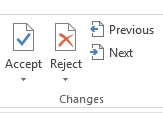
You can use the tools on the Review tab to Accept or Reject changes one by one, or you can Accept or Reject the changes all at once.

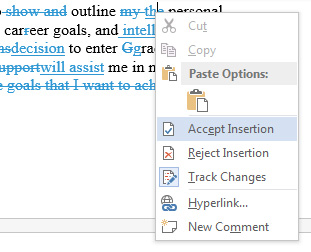
You can also right-click on individual changes in the document to access the Accept/Reject functions.

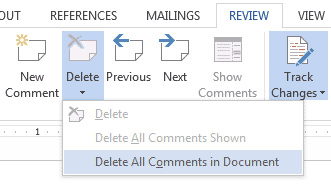
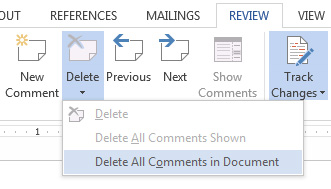
You can also delete the comments with the Review tab.
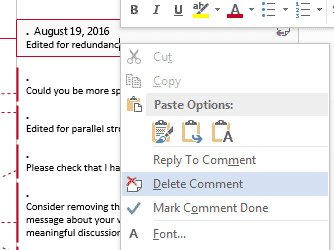
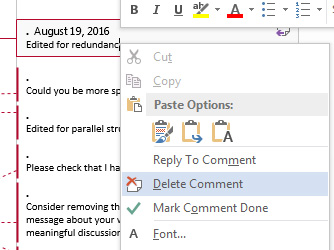
Right-clicking on a comment balloon also brings up a Delete Comment function in the fly-out menu.
Unfortunately, some word processing programs do not have anything similar to MS Word's Track Changes feature, which allows our editors and proofreaders to highlight revisions in red so that you can easily see and review each change if you desire. If the tracking of changes is not possible with your file type, your editor will summarize the changes in the Editor Notes section, and of course you can also compare your revised document with your original document.
Currently, we accept most PC-compatible word-processing files, such as MS Word, WordPerfect, WordPad, Notepad, MS Works, Adobe Acrobat, MS Excel, MS PowerPoint, OpenOffice, Final Draft, LaTeX, and webpages. If you have Apple/Macintosh or Linux/Unix files, they can be saved and uploaded in a PC-compatible format (e.g., as a .doc, .docx, .txt, or .rtf). If you are using a program not listed here, save your file as a text (.txt) file, a Rich Text file (.rtf), or as a last resort you can save it as a .pdf file. Please see our FAQ on Can you edit PDF files? before sending us a PDF file. If you're still not sure about your file format, please contact us!
We accept the following file extensions (the last part of your file name):
- .csv
- .doc
- .docx
- .fdx
- .htm
- .html
- .odt
- .ppt
- .pptx
- .rtf
- .tex
- .txt
- .wpd
- .wps
- .xls
- .xlsx
Placing an order with Scribendi is easy. On our home page, just choose the main service category that you think is best for your needs.
From there, you'll be presented with several options. Click the one that you think is right for you. After reading the description of what the service provides, you can get an instant quote simply by providing an accurate word count of your document(s) and choosing a deadline.
When you're ready to order, just click the Order Now button. Upload the files for your order, add any special instructions, and then fill in your contact and payment details to confirm your order! Then sit back and relax as we get to work. Your document will be returned within the time frame you specified.
Please note: We do try to double-check word counts on the documents that we receive, but to ensure there are no delays in processing your order, please make every effort to give us an accurate count.
The Scribendi system allows you to upload as many files as you need for your order.
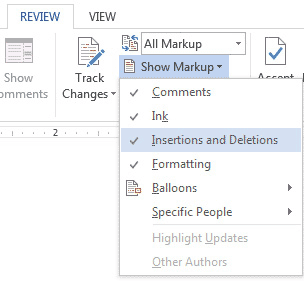
The changes may not be visible if the Show Markup feature is turned off or if Word is not in the right view to see changes. First, click the Review tab:
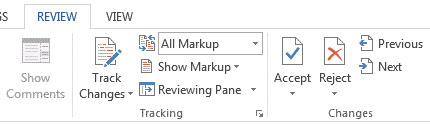
Then click the Show Markup menu to make sure all the markup options are checked:
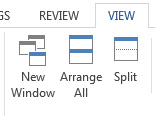
You can also try changing your view. First, click the View tab:
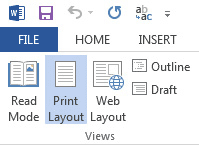
Then, click the Print Layout View button:
For .doc files, we use the Track Changes and the Comments features. Click one of the links below to jump to instructions for your version of MS Word/Office:
Office 2016 | Office 2007 | Office XP | Older Versions of Word/Office
If you're using Word/Office 2016, you can access the Track Changes and Comments tools by clicking on the Review tab.
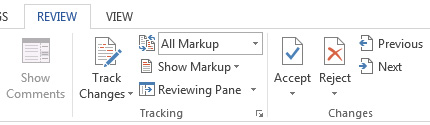
You can use the tools on the Review tab to Accept or Reject changes one by one, or Accept or Reject all at once.
You can also right-click on individual changes in the document to access Accept/Reject functions.
You can delete comments via the Review tab as well.
Right-clicking on a comment balloon also brings up a Delete Comments function in the fly-out menu.
If you're using Word/Office 2007, you can access the Track Changes and Comments tools by clicking on the Review tab.
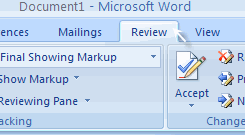
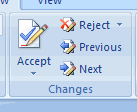
You can use the tools on the Review tab to Accept or Reject changes one by one, or Accept or Reject all at once.
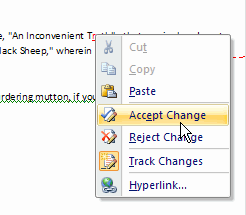
You can also right-click on individual changes in the document to access Accept/Reject functions.
You can delete comments via the Review tab as well.
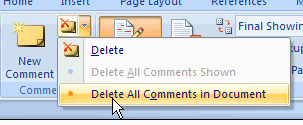
Right-clicking on a comment balloon also brings up a Delete Comments function in the fly-out menu.
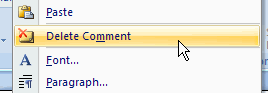
Word/Office XP Accept/Reject Changes
If you're using Word/Office XP (scroll down to find instructions for older versions of Word), there are three ways to accept or reject the changes (scroll down to find instructions on comments) we've made:
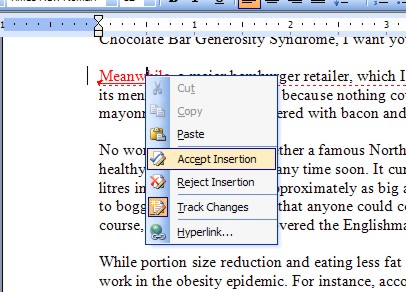
1. Right-click on the red/changed text, and a fly-out menu will appear. Select Accept or Reject from that menu. Accepting it will integrate that revision into your document. Rejecting it will make our revision disappear. This will allow you to accept/reject individual changes as you see fit.
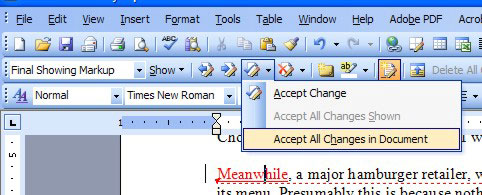
2. If you want to accept (or reject) all the changes in your document at once, and/or get rid of the lines in the margins, go to the Review tab, find the Accept Changes button, and click the arrow beside that button. A short menu will come down, and you can select Accept All Changes in Document.
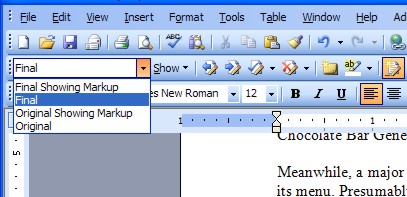
3. To see the document in its final form, change the Reviewing drop-down menu to Final (see below).
Word/Office XP Read/Delete Comments
If you're using Word/Office XP (scroll down to find instructions for older versions of Word), there are two ways to delete the comments we've made once you've read them. Comments in XP show up in red balloons off to the right of your text.
1. Right-click on the comment, and a fly-out menu will appear. Select Delete Comment from that menu.
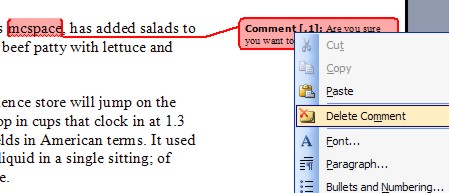
2. To see the document in its final form, change the Reviewing drop-down menu to Final (see below).
If you're using an older version of Word, there are two ways to accept or reject changes (scroll down for instructions on how to get rid of yellow highlighted comments).
Older Versions of Word Accept/Reject Changes
1. Right-click on the red/changed text and a fly-out menu will appear. Select Accept or Reject from that menu. Accepting it will integrate that revision into your document. Rejecting it will make our revision disappear. This will allow you to accept/reject individual changes as you see fit.
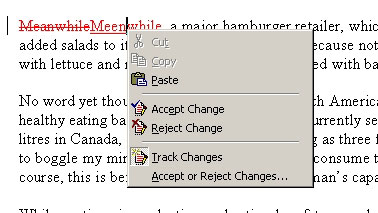
2. If you want to accept (or reject) all the changes in your document at once, and/or get rid of the lines in the margins, go to the Tools menu, select Track Changes, Accept or Reject Changes, and then select the Accept All or Reject All option.
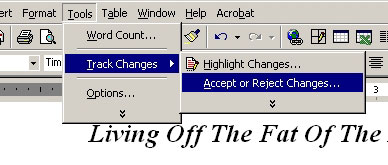
Older Versions of Word Read/Delete Comments
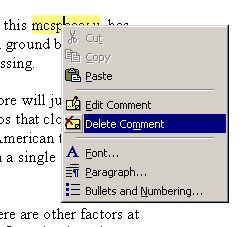
If you're using an older version of Word, there are two ways to delete comments. Comments in Word are marked with yellow highlight. First, hover over the yellow text to have the comment appear.
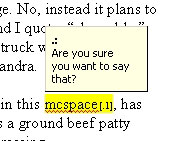
Once you've read the comment:
1. Right-click on the comment and a fly-out menu will appear. Select Delete Comment from that menu.
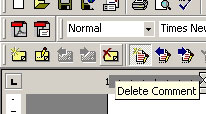
2. You can also go to the Reviewing tool bar and select Delete Comment.
If you're using MS Word 2016, any documents downloaded from a website will show up in "Protected View." You have to click the Enable Editing button, which can be seen at the top of your document. There are two ways to fix this: 1) click the Enable Editing button at the top of each document every time you download it, or 2) make Scribendi.com a trusted site.
There are two ways to make Scribendi a trusted site:
• Go to File > Options > Trust Center > Trust Center Settings > Protected View; then, you can uncheck Enable Protected View for files originating from the Internet.
or
• Go to MS Word > File > Options > Trust Center > Trust Center Settings > Trusted Locations > Add new location.
- This will designate a folder on your drive for trusted documents from the Internet. If you don't want to enable everything, then you can download the items you trust into a specific folder and mark that folder "trusted."
If you’re using MS Office 2016 and want to avoid having to click "enable editing" every time you download a document from Scribendi, make us a trusted site. There are two ways to make Scribendi a trusted site:
• Go to File > Options > Trust Center > Trust Center Settings > Protected View; then, you can uncheck Enable Protected View for files originating from the Internet.
or
• Go to MS Word > File > Options > Trust Center > Trust Center Settings > Trusted Locations > Add new location.
- This will designate a folder on your drive for trusted documents from the Internet. If you don't want to enable everything, then you can download the items you trust into a specific folder and mark that folder "trusted."
We can certainly provide a thorough edit and a grammar check on a PDF file, and we will make use of PDF annotation tools (like the highlighter and comment bubbles) to show you where corrections are needed. However, because PDF files are not designed to be edited, we can't actually make the changes directly to the text. PDF files, also known as portable document format files, are a way to lock down the way it is formatted, so you can send your document to any computer and it will look the same regardless of how the receiving computer is set up. They are also used for contracts and forms to guarantee that the receiving party isn't changing the terms or fields prior to signing.
So, if you send us a PDF file, we are happy to review it and send back the highlighted corrections for you to make in the original document. If you want us to be able to make the changes directly, please send us the original file (e.g., the original .docx or .tex file) that was used to generate the PDF.
While the _CLEAN_REVISED file has incorporated all the revisions into your document, the comments have not been removed because they often focus on issues that you may still have to address. Some clients don’t want to review all the tracked changes in a document, so they just look at the _CLEAN_REVISED file. To make sure that our clients are aware of all the important issues in their documents, we keep the editor’s comments in the clean file. Once you’ve reviewed the editor’s suggestions and made any necessary changes, it’s easy to remove the comments.
In MS Word files (.doc and .docx), the Comments feature allows you to quickly delete comments, either one by one or all at once. You can access the Comments tool by clicking the Review tab and then the Delete icon in the Comments section. In the dropdown menu, you can remove the comments one by one (by clicking Delete in the menu) or all at once (by clicking Delete All Comments in Document in the menu).

Another option is to simply right-click on a comment balloon; a fly-out menu is opened, and you can simply click Delete Comment in this menu to remove the selected comment.
Yes! If you have a long document, such as a dissertation or a book, you can submit your work in sections (e.g., by chapter) via two or more orders. Just divide your work into separate documents and place an order for each section. Because different editors will be assigned to each section of your document, it will be completed faster than it would be with just one editor. However, working with multiple editors can pose a slight risk in terms of inconsistency with regard to style and certain editorial choices, so be sure to specify any style guide requirements or instructions in each of the related orders.
If your file is too large to upload, please split your document into 2 files (or more, if necessary). Please note that we accept files up to 200 MB in size.